
Introducing Yaptake, a transcript video editor for Mac
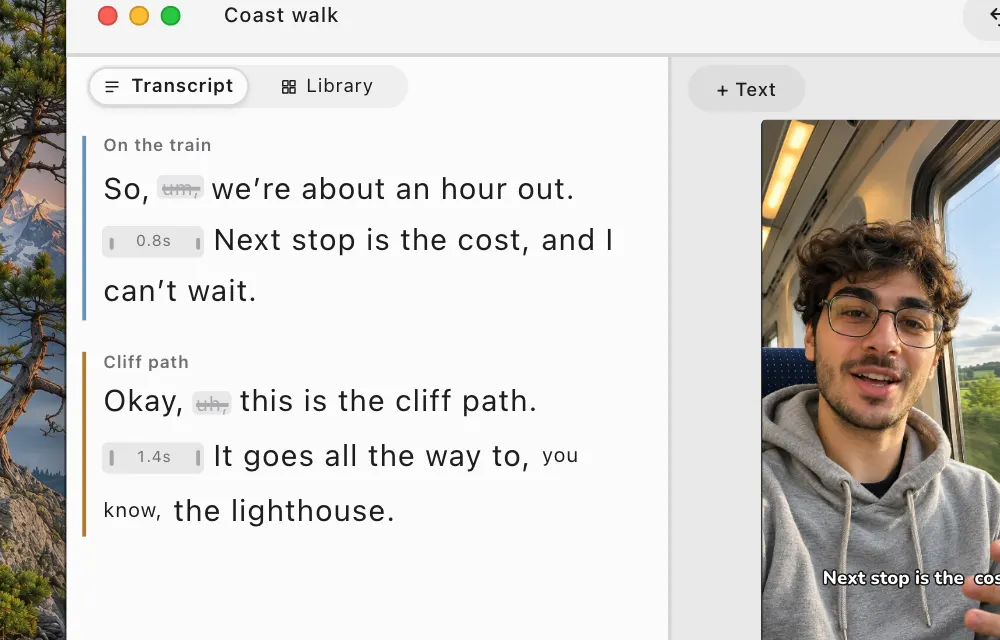
Listen to someone describing a train ride. “So, um, we’re about an hour out.” The useful line starts in the middle of the breath. You could skim a waveform looking for “um.” In Yaptake, you can see the word on the page.
Yaptake is a transcript video editor for an Apple Silicon Mac. Its transcript, picture and timeline show the same recording. Remove a word and its audio and video leave the edit together. Correct the spelling and only the caption changes. Try each move with a recording of your own or the sample in the app.
Start with one answer
Drop your recording on the Yaptake window. A project named after it appears in Movies › Yaptake. If you would rather try the controls before choosing footage, click Try a Sample in the empty window. Transcription runs on your Mac. The first launch downloads a speech model, so give the transcript time to settle before correcting names.
Read through the answer once. Pick a false start with an obvious beginning and end. Select those words in the transcript and press Delete. Now play from just before the cut with your eyes off the screen. Listen for the breath that introduces the second thought. If the join sounds rushed, undo it and leave a few more words. To bring a line back later, select its removed words and choose Edit → Restore Deleted Words.
Make the captions say what the speaker said
In the train clip, the transcript reads “Next stop is the cost.” The speaker said “coast.” Correct the word in the transcript and play that moment again. The subtitle now names the destination you heard. The voice and the length of the shot stay the same.
Choose View → Caption Look and try the longest line over the busiest shot. Boxed gives the words a backing. Karaoke brightens each word as it is spoken. Drag the captions in the preview if they cover a face or an important detail. The caption guide walks through placement, line breaks and overlays.

Check the cut in the frame you will publish
Choose a format before you judge the last few edits. Landscape leaves room for an interview framed across a desk. Portrait gives a vertical clip more screen space and can put the same speaker close to the edge of the picture. Play the edit in the chosen format and watch both the subject and the captions. If cutting between two almost identical poses makes the join distracting, try View → Punch In on Cuts and compare the result.
Choose File → Export to save the MP4. Open the exported file and watch the first and last seconds as well as the edit itself. Your first three successful exports on each Mac are free and watermark-free. The first-cut guide covers export settings and how to bring a project to another Mac.
For a recording that only needs a transcript or a caption file, the browser transcription tool handles that on your device.